


Great Docs started with a premise: you should be able to point a tool at
your Python package and get a documentation site that looks good without
any design work. Run great-docs init, run great-docs build, open the
result in a browser, and you are done. That three-command workflow has
not changed since v0.1, and the simplicity of the entry point is
important. But behind that simple surface, ten releases have added a
world of capability for when you are ready to go further.
With the release of v0.10.0, we have reached a nice, round number and
it’s worth looking back and surveying all the things that were done! So
what follows is a survey of ten features (one per release) that
represent the range of what Great Docs has become. Taken together, they
tell the story of a documentation generator that starts simple and
scales with your ambitions.
1. Auto-Discovery#
The original release (v0.1) came out with the feature that defines the
project’s philosophy. When you run great-docs init, Great Docs
inspects your package and discovers its public API automatically. It
finds classes, functions, dataclasses, protocols, enumerations,
exceptions, type aliases, and more, using a combination of runtime
introspection and static analysis via
griffe
. It detects your
docstring style (NumPy, Google, or Sphinx) and writes a great-docs.yml
configuration file that captures the full structure of your API.
reference:
  sections:
    - title: Core
      contents: [MyApp, Config, build, preview]
    - title: Utilities
      contents: [parse, validate, format_output]
    - title: Exceptions
      contents: [ConfigError, BuildError]
The practical consequence is that you don’t have to enumerate your exports by hand. If you add a new class or function to your package, the next build picks it up. If you remove something, it disappears from the site. The configuration file exists so you can reorder sections, add display names, or exclude internal symbols, but the default is complete and correct without any having to do any manual intervention.
I suppose this was the design decision that everything else built on: if Great Docs can figure something out automatically, it should, and configuration should be for expressing preferences rather than providing information that we could have inferred.
2. SEO and Proofreading#
The v0.2 release added two capabilities that address different aspects
of the same problem: making sure people can find your documentation and
making sure what they find reads well.
On the discoverability side, Great Docs now generates sitemap.xml,
robots.txt, canonical URLs, and JSON-LD structured data automatically.
Per-page Open Graph meta tags are injected so that when someone shares a
link to your documentation, the preview card shows a title, description,
and image rather than a generic URL. The great-docs seo audit command
checks your site for common problems (e.g., missing descriptions, broken
canonical links, orphaned pages, etc.).
great-docs proofreadOn the quality side, the great-docs proofread command runs local
grammar and spelling checks powered by
Harper
, a fast grammar checker that runs
entirely on your machine. It skips code blocks and YAML frontmatter,
ships with a technical dictionary so it does not flag standard
programming terms, and supports project-specific custom dictionaries for
your package’s terminology. The output is available as plain text or
JSON (which is well-suited for CI pipelines).
The combination means that documentation sites built with Great Docs tend to surface well in search results and tend to read cleanly once readers arrive. Neither of these things sound all that exciting, but both matter more than a lot of visual features.
3. Documentation Linting#
Release v0.3 introduced great-docs lint, a static analysis tool for
your documentation rather than your code. It inspects your package’s
public API and checks for problems that would otherwise surface only
when a user encounters a confusing or broken page.
great-docs lintThe linter catches missing docstrings (a function exists in your API but
has no documentation), broken cross-references (you reference
MyClass.process but the method is actually called MyClass.run),
style mismatches (you declared NumPy-style docstrings but a function
uses Google style), and unknown directives in your docstrings. It
produces machine-readable JSON output, making it straightforward to add
a lint step to your CI pipeline that fails the build when documentation
quality degrades.
This sort of feature is more useful than you’d expect. You might run it, discover three functions that never got docstrings and two cross-references that broke during a refactor, fix them, and then feel quite happy. Using it again and again will probably prevent the same sort of problems from recurring. The goal is that no user should ever land on an API reference page and find it empty or confusing because of some oversight.
4. Internationalization#
Great Docs v0.4 made it possible to present your entire documentation
site in any of 23 languages with a single configuration option. The
actual content of your pages remains in whatever language you write it
in (usually English), but every piece of UI text (navbar labels, button
tooltips, relative timestamps, search placeholders, accessibility
attributes, pagination controls) is automatically translated.
site:
  language: fr
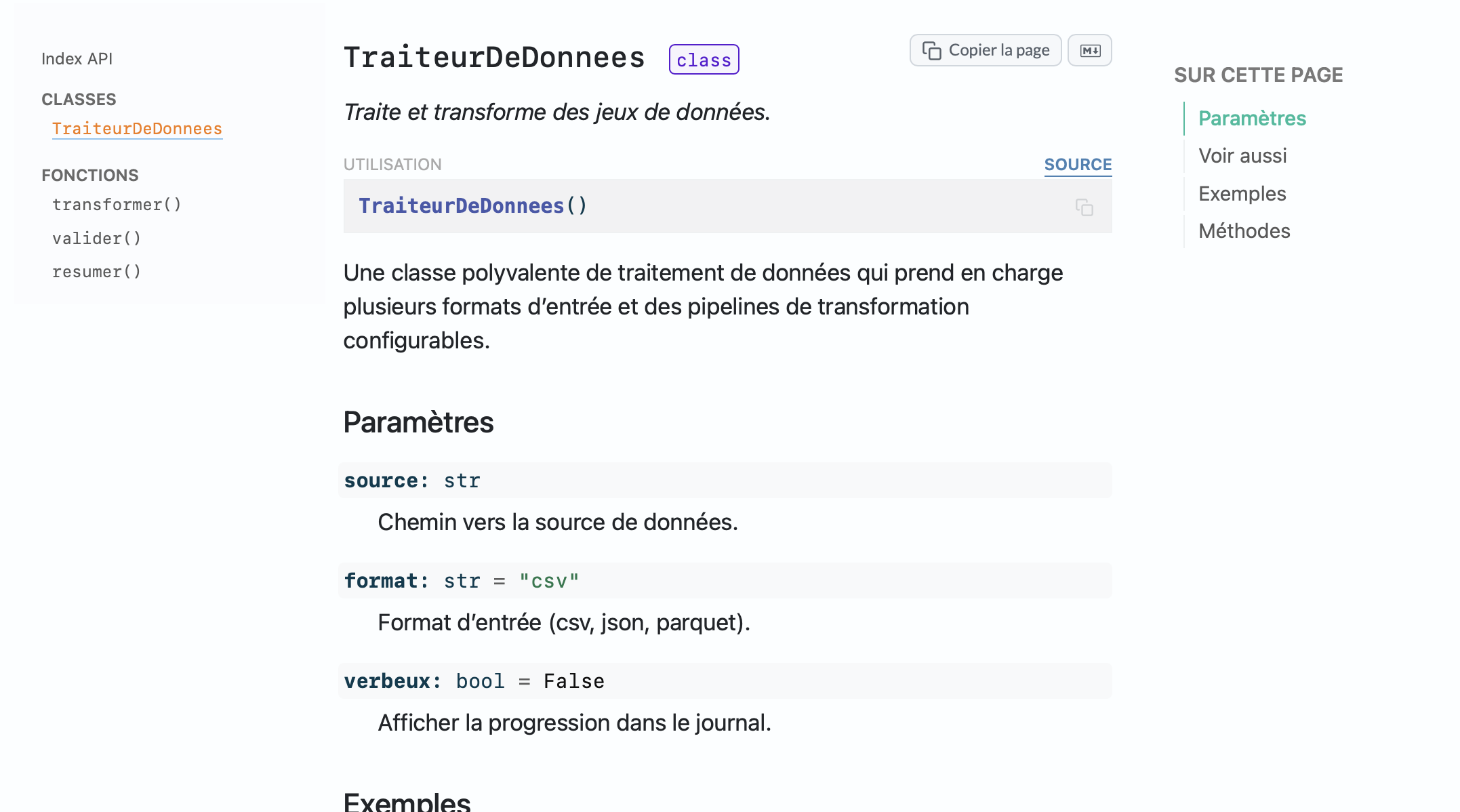
That single line transforms every “Next page” into “Page suivante”, every “Search” into “Rechercher”, and every “2 days ago” into “il y a 2 jours”. Translations include proper plural forms for languages that need them (like Polish, which has three plural forms depending on the number) and localized date expressions.
The reasoning behind this feature is straightforward: if your package has international users (and most packages do, whether they realize it or not), the friction of navigating a site where every label is in a language you do not speak fluently is real. While translating content is a large undertaking, translating UI chrome is something a tool can do for you.
5. Keyboard Navigation#
The v0.5 release added a full keyboard shortcut layer that ships with
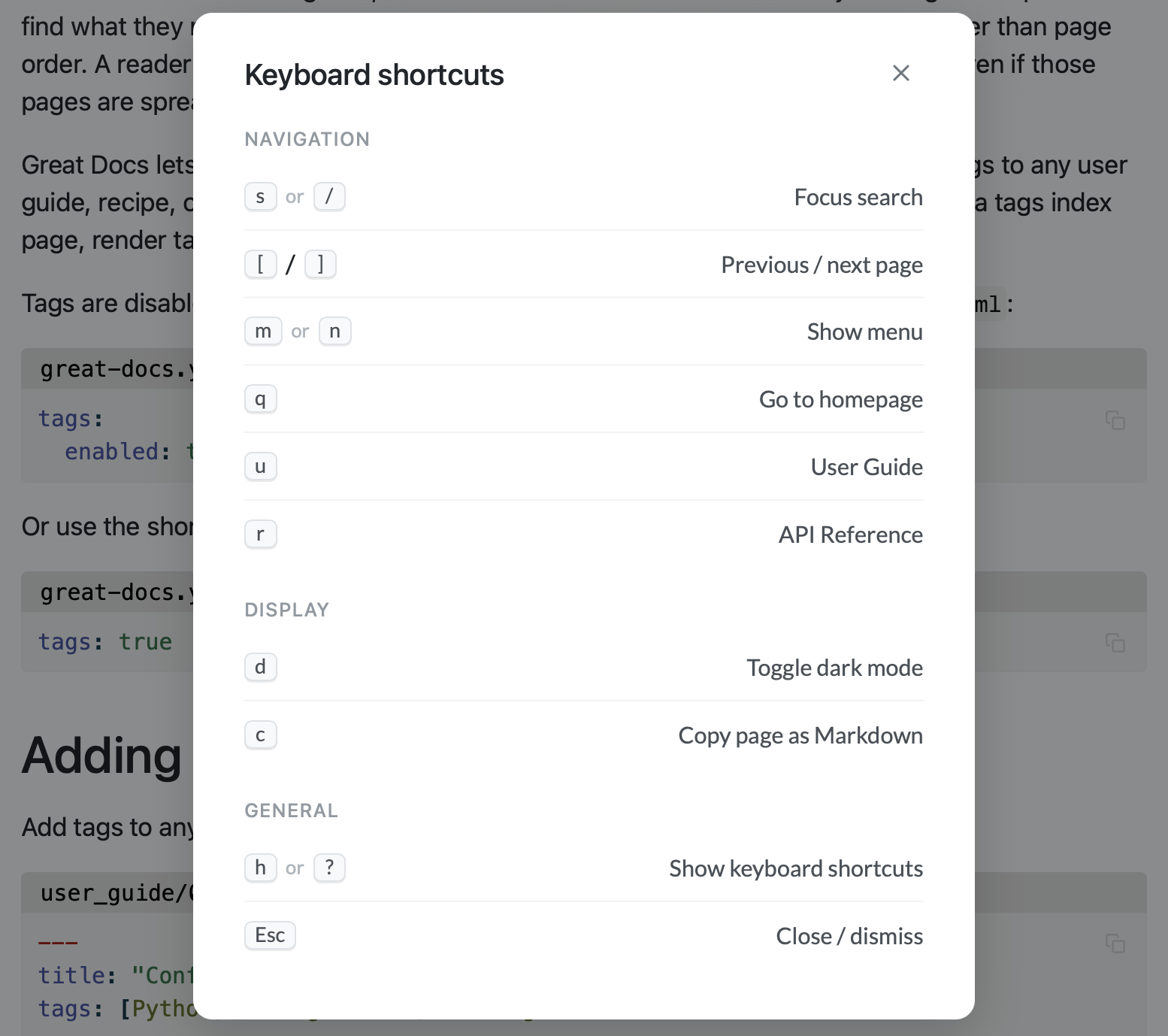
every documentation site. Press / or s to focus search. Press [
and ] to navigate to the previous or next page. Press d to toggle
dark mode. Press c to copy the current page as Markdown. Press h or
? to see a help overlay listing all available shortcuts.
All shortcuts are disabled when a text input has focus (so typing in
search does not trigger navigation) and respect prefers-reduced-motion
for users who have requested reduced animation. The system is enabled by
default and can be disabled entirely via keyboard_nav: false in the
configuration for projects that don’t want it.
Keyboard navigation is one of those features that, once you have used it
for a day, makes every site without it feel slightly slower. The ability
to browse through a long user guide using [ and ] without moving
your hands to the trackpad is a small daily improvement that compounds
over time. It also makes the sites more accessible to users who navigate
primarily or exclusively by keyboard.
6. Page Tags and Status Badges#
Release v0.6 introduced page-level metadata that surfaces in both the
page body and the sidebar, giving documentation sites a lightweight
content management layer.
Page tags let you categorize pages by topic using YAML frontmatter:
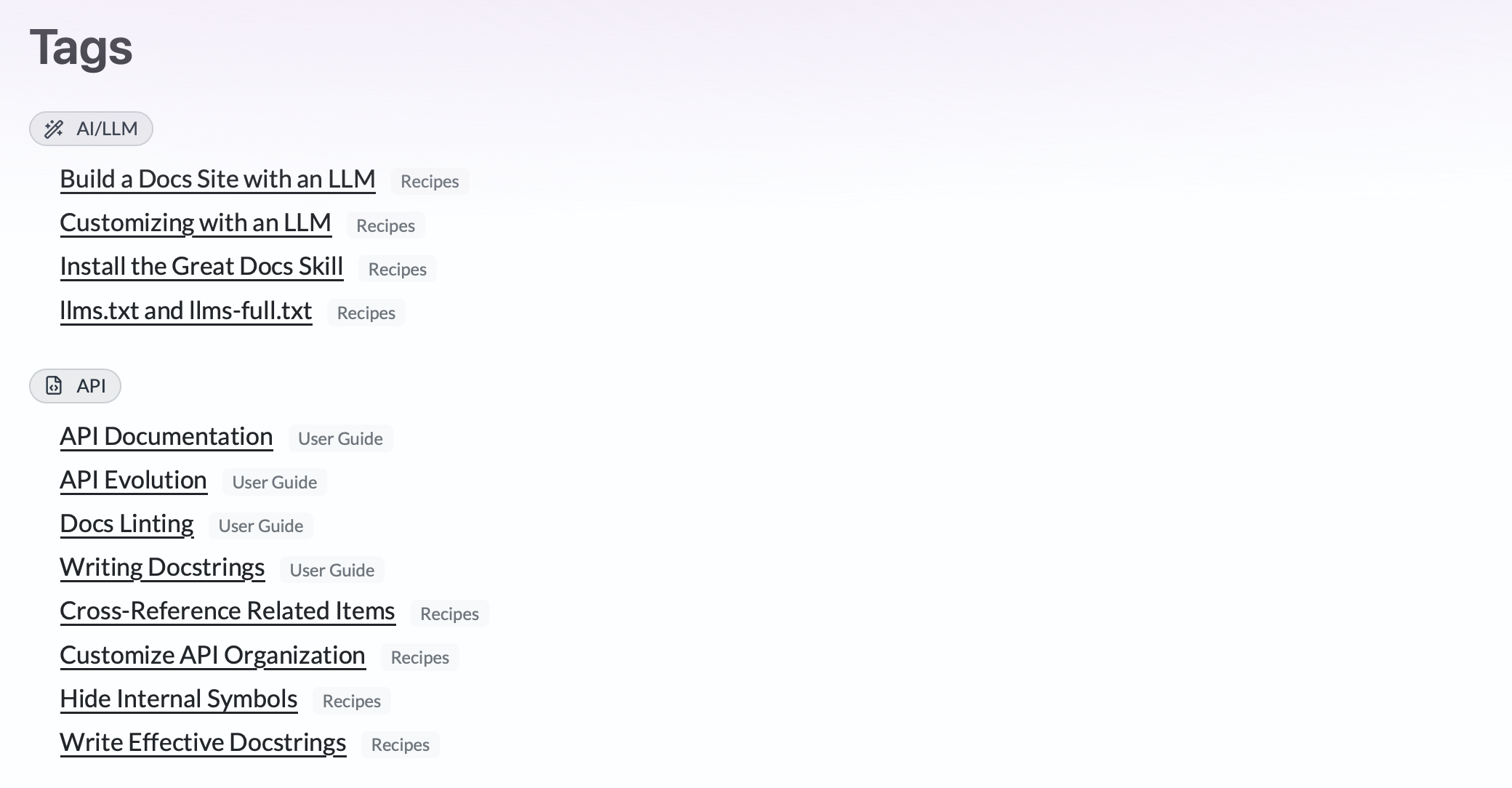
tags: [Configuration, Theming, Advanced]Great Docs renders these as pill-shaped links above the page title and auto-generates a tags index page listing all tags across the site with links to their associated pages. If you maintain a large user guide with dozens of pages, tags give readers an alternative navigation path: instead of scrolling through the sidebar, they can click a tag to find all related content. Every User Guide page on the Great Docs site uses page tags, and the Page Tags guide explains how to set them up.
Page status badges mark pages with lifecycle states:
status: betaThe supported statuses are new, beta, deprecated, and
experimental, each rendered as a color-coded badge below the page
title. In the sidebar, these appear as compact icons so that readers can
see at a glance which parts of the API are stable and which are still
evolving. Status badges are automatically translated for non-English
sites (the same i18n system from v0.4 applies) and include built-in
Lucide icons and color schemes.
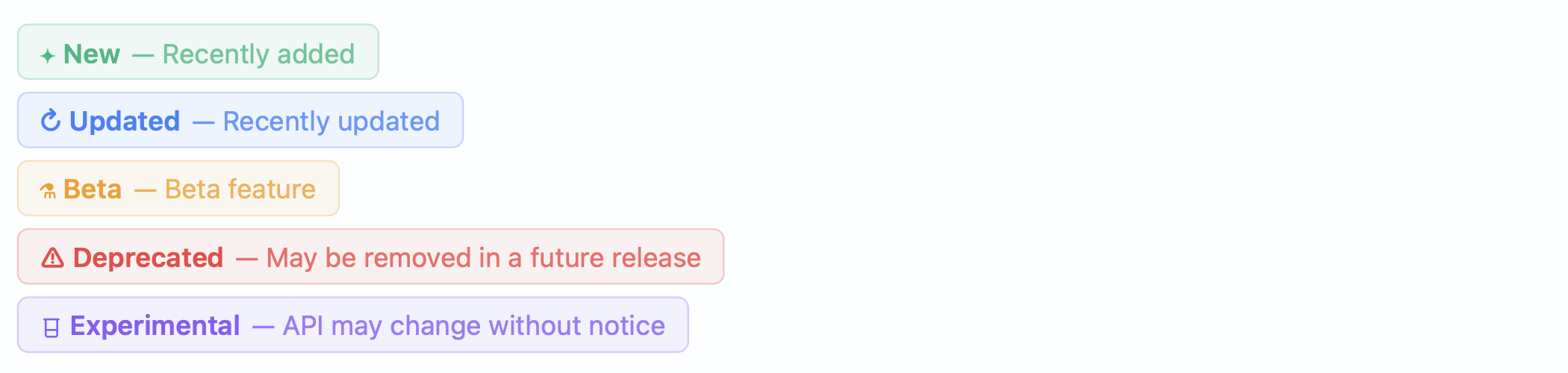
Together, tags and status badges give documentation authors a way to communicate structure and maturity without writing prose about it. A reader landing on a page immediately knows whether it describes a stable feature or an experiment, and can navigate to related topics through shared tags. The Page Status Badges guide covers the full set of options.
7. Scale-to-Fit#
Great Docs v0.7 introduced a solution to a problem that plagues
documentation for data-oriented packages: wide tables and HTML widgets
that overflow the content column. When a table produced by
Great
Tables
or a Pandas DataFrame
is slightly wider than the page, the reader has to scroll horizontally
to see a sliver of remaining content, which is a frustrating experience.
But when content is dramatically wider than the container, shrinking it
would make text unreadably small. So, in essence, different situations
demand different responses.
Scale-to-Fit handles both cases. It automatically shrinks targeted elements so they fit within the container width, and falls back to horizontal scrolling when the element would need to shrink beyond a configurable minimum threshold. The default threshold is 60% of natural size, meaning content will shrink up to 40% to avoid scrollbars, but anything more extreme gets a scrollbar instead.
scale_to_fit: true
scale_to_fit_min_scale: 0.6
The feature can be enabled globally (all rendered HTML output gets the
treatment), per-page via frontmatter, or manually on individual elements
using a :::{.scale-to-fit} div wrapper. The global setting is what
most data-oriented packages want: turn it on once and every GT table,
every DataFrame display, and every custom widget in your documentation
adapts gracefully to the reader’s viewport without any per-page
configuration. The
Scale-to-Fit
guide demonstrates the behavior at different widths.
8. Versioned Documentation#
Release v0.8 addressed a fundamental challenge of maintaining
documentation for evolving libraries: users on older releases need docs
that match the version they have installed. Great Docs makes
multi-version documentation a build-time concern rather than a
deployment concern. You declare your versions in configuration, and the
build system produces a coherent, version-aware site.
versions:
  - "0.3"
  - "0.2"
  - "0.1"
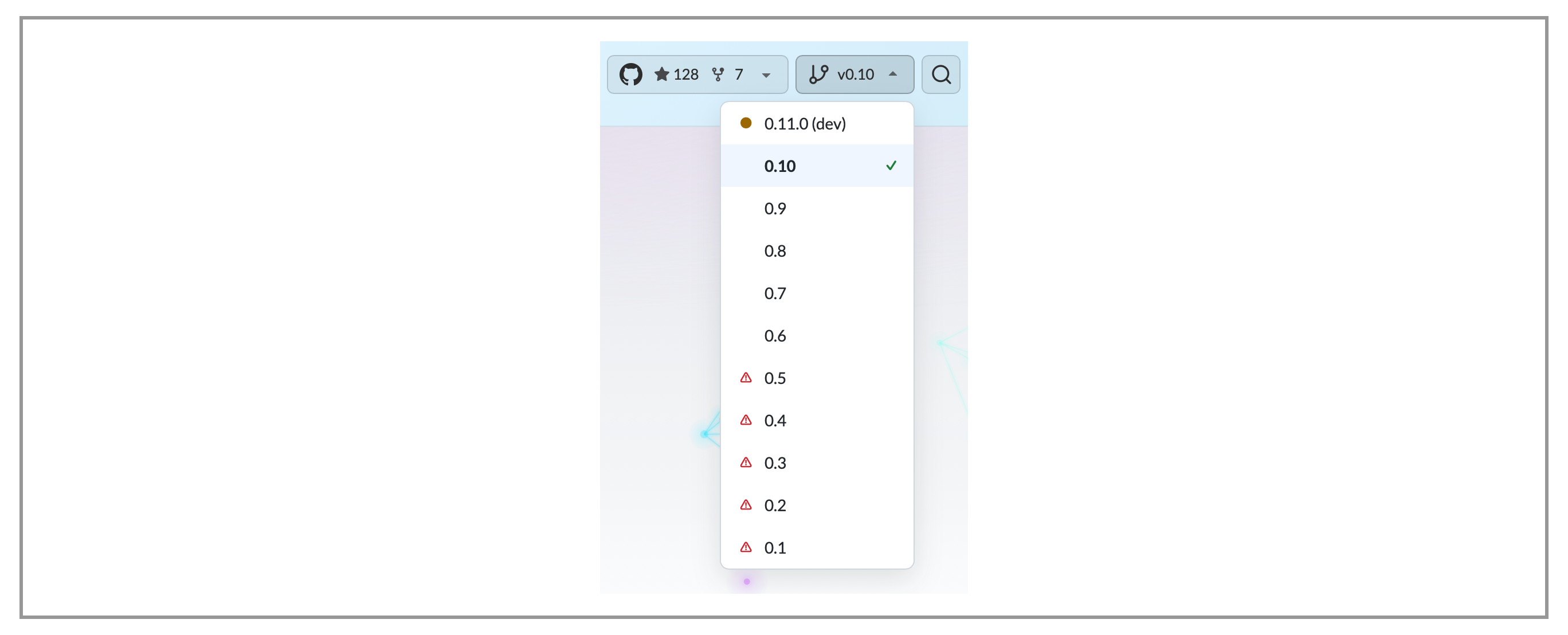
That configuration produces three independent copies of your site: the
latest version at the root URL, and previous versions under /v/0.2/
and /v/0.1/. A version selector dropdown appears in the navbar,
letting readers switch between versions. Each version can reference an
api_snapshot to regenerate API pages from that release (rather than
the current code), and pages can use versions frontmatter to declare
which releases they apply to. Pages that did not exist in older releases
are automatically excluded from older builds.
The system also supports prerelease versions (marked in the dropdown but
not served as “latest”), end-of-life versions (visually distinguished),
and floating URL aliases like /v/stable/ that always resolve to the
current release. Maintainers declare versions once and the build handles
the rest. The
Great Docs documentation
site
itself is a good example
of this feature in practice: its version selector currently contains ten
versions, one for each release from v0.1 through v0.10.0. The
Versioned
Docs
guide covers the full configuration in detail.
9. Color Swatches#
Great Docs v0.9 added a shortcode for documenting color palettes
interactively. If your package has a theming system, a set of brand
colors, or a palette of status indicators, you have probably faced the
problem of showing colors in documentation. Screenshots go stale,
hand-coded HTML swatches are tedious, and plain text hex codes are
meaningless without a visual reference. The color-swatch shortcode
turns a YAML file into an interactive palette.
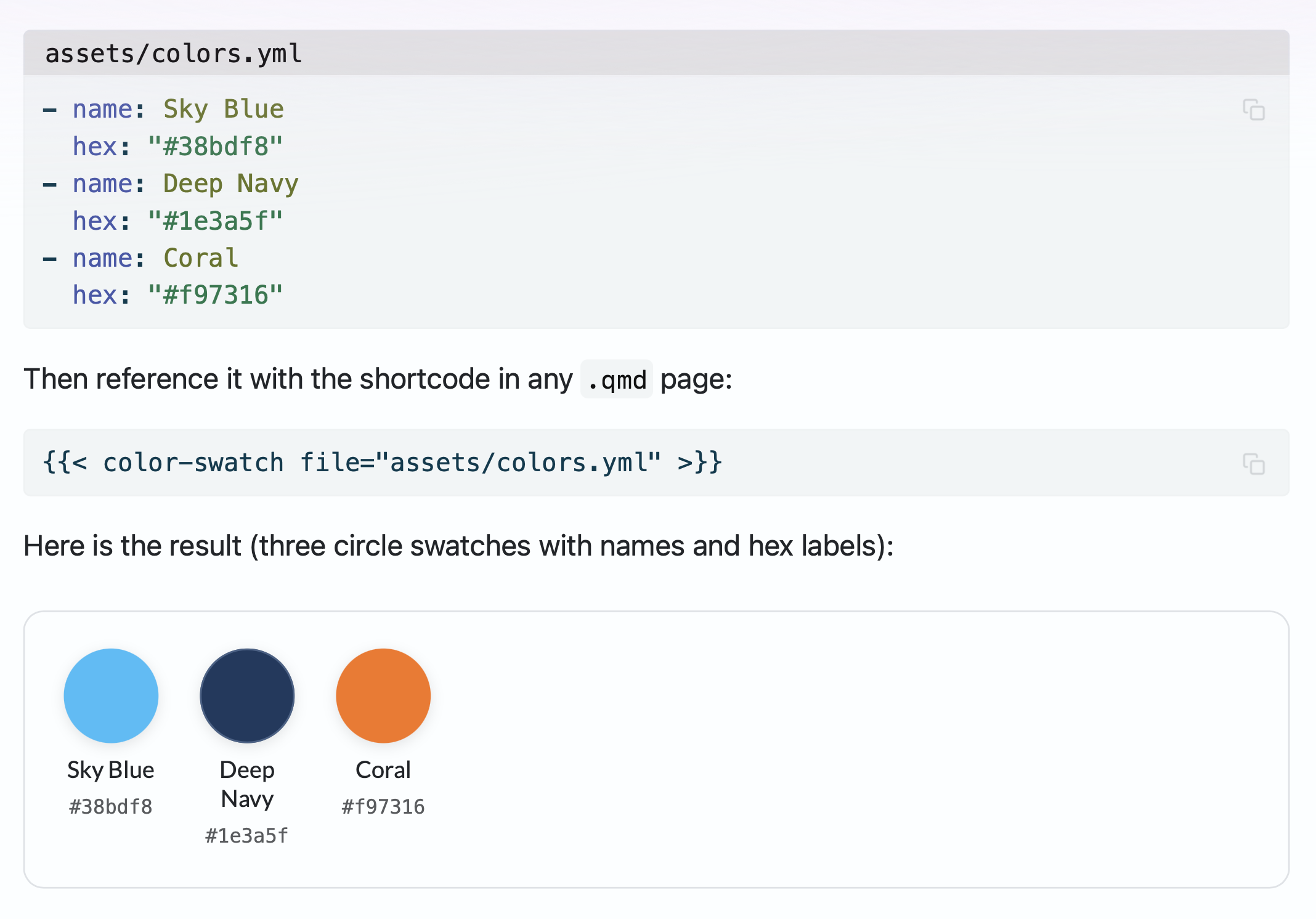
Each swatch displays its hex code, shows RGB and HSL breakdowns on
hover, evaluates WCAG and APCA contrast ratios against white and black
backgrounds, and lets readers copy the color value with a single click.
Two display modes are available: circles (compact, scannable) and
rectangles (detailed, with contrast information front and center). Great
Docs also ships with built-in presets for its own gradient themes, so
you can reference preset="sky" or preset="lilac" without creating a
YAML file at all.
For packages that deal with color (charting libraries, design systems, theming frameworks), this feature eliminates a category of maintenance burden. The YAML file is the source of truth; the rendered output is always current, always interactive, and always accessible. The Color Swatches page in the User Guide covers the full range of options.
10. Table Previews and Table Explorer#
The most recent release, v0.10.0, added two complementary tools for
embedding data directly in documentation pages. If your package works
with tabular data (and many Python packages do), showing what a dataset
looks like is one of the most common documentation tasks, and also one
of the hardest to do well with static publishing.
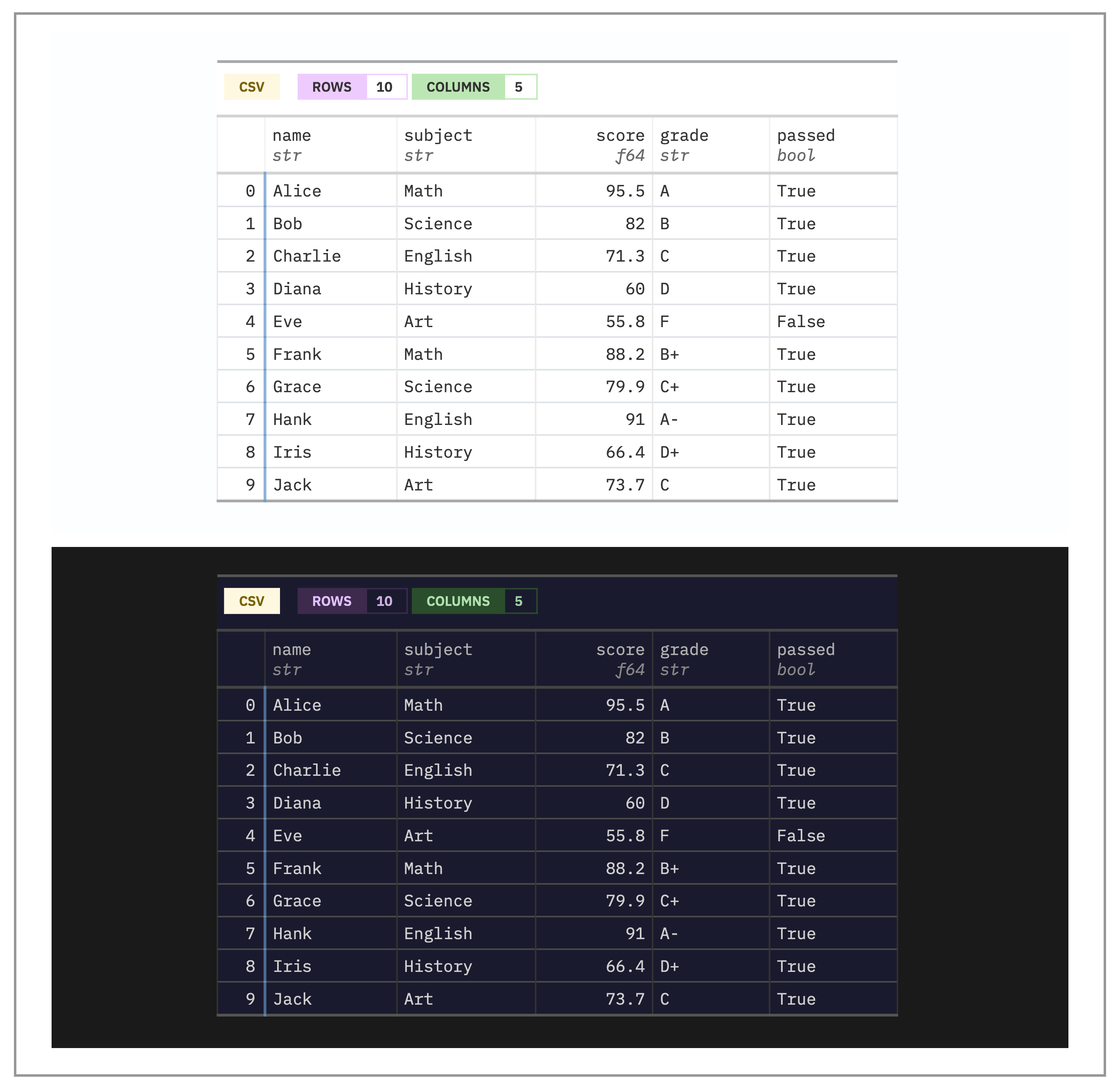
tbl_preview() generates a self-contained, JavaScript-free HTML table
from almost any data source:
from great_docs import tbl_preview

tbl_preview("data/example.parquet")
It accepts Polars DataFrames, Pandas DataFrames, PyArrow Tables, CSV files, Parquet files, and plain Python dictionaries. Each preview includes a colored type badge identifying the source format, compact dtype labels beneath every column header, row-number gutters, automatic head/tail splitting for large tables (showing the first and last rows with an ellipsis in between), and missing-value highlighting. The output works identically in light and dark modes and requires no JavaScript at all.
tbl_explorer() is the interactive counterpart. It embeds all data as
inline JSON and progressively enhances a static fallback table with
sorting, token-based filtering, pagination, column toggling,
copy-to-clipboard, and CSV download. A Quarto shortcode variant lets you
embed an explorer directly in a .qmd page by pointing at a data file,
without writing any Python.
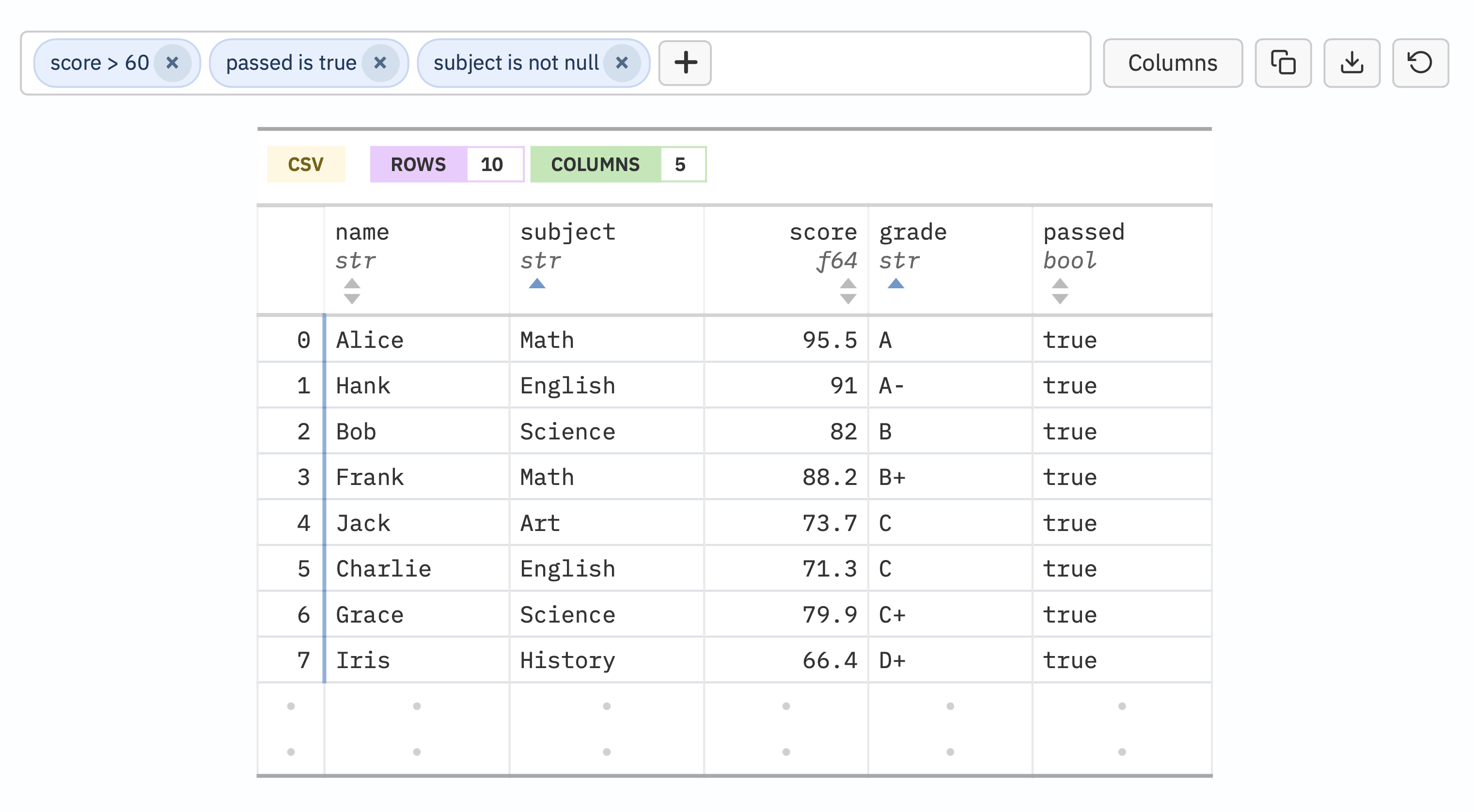
The distinction between the two is deliberate. tbl_preview() is for
showing what data looks like: schema, types, a representative sample.
tbl_explorer() is for letting readers interact with data: sort columns
to find extremes, filter rows by values, hide irrelevant columns, and
export subsets. Together they cover the full spectrum of data
documentation needs, from a quick “here is the structure of this
DataFrame” to a fully explorable reference dataset. The User Guide has
dedicated pages for
Table
Previews
and
Table
Explorer
;
the latter is worth visiting just to try the interactive tables yourself
and see how sorting, filtering, and column toggling feel in practice.
What Ten Releases Add Up To#
Looking back across ten releases, what is striking is not any single feature but the range of concerns the tool now addresses. Documentation generation is the starting point, but the problems that come after generation (discoverability, quality, accessibility, internationalization, versioning, interactivity) are where most of the ongoing work has gone. A documentation site is not just a rendering of your docstrings; it is a product that needs search engine optimization, proofreading, linting, keyboard accessibility, responsive design, and support for readers across languages and connection speeds.
The guiding principle remains the same as it was in v0.1: you should
be able to get a good site with minimal effort! But “minimal effort”
scales so, for a new package, that means three commands and zero
configuration. For a mature package with international users, multiple
supported versions, and extensive user guides, it means a
great-docs.yml file that declares your preferences while the tool
handles the mechanics of producing a site that meets the standard you
have set.
Great Docs is available on PyPI so if you maintain a Python package and want to try it:
pip install great-docs
cd your-python-project
great-docs init
great-docs build
great-docs preview
The documentation site covers everything discussed here and much more. If there is a feature you wish your documentation site had (something that would save you time, help your readers, or make maintenance less painful), we would genuinely like to hear about it. The best ideas for the next ten releases will come from people who use the tool daily and notice what is missing. Open an issue on GitHub with your idea, however rough, and we will take it seriously!